Merging groups – step-by-step instructions
These instructions show you how to transfer the participants of an existing training group to another group and then archive the original group.
1. Exporting the group results
In the group overview, select the group whose participants are to be transferred to another group. Then click on the download arrow in the top right-hand corner and select ‘Export (xlsx)’. 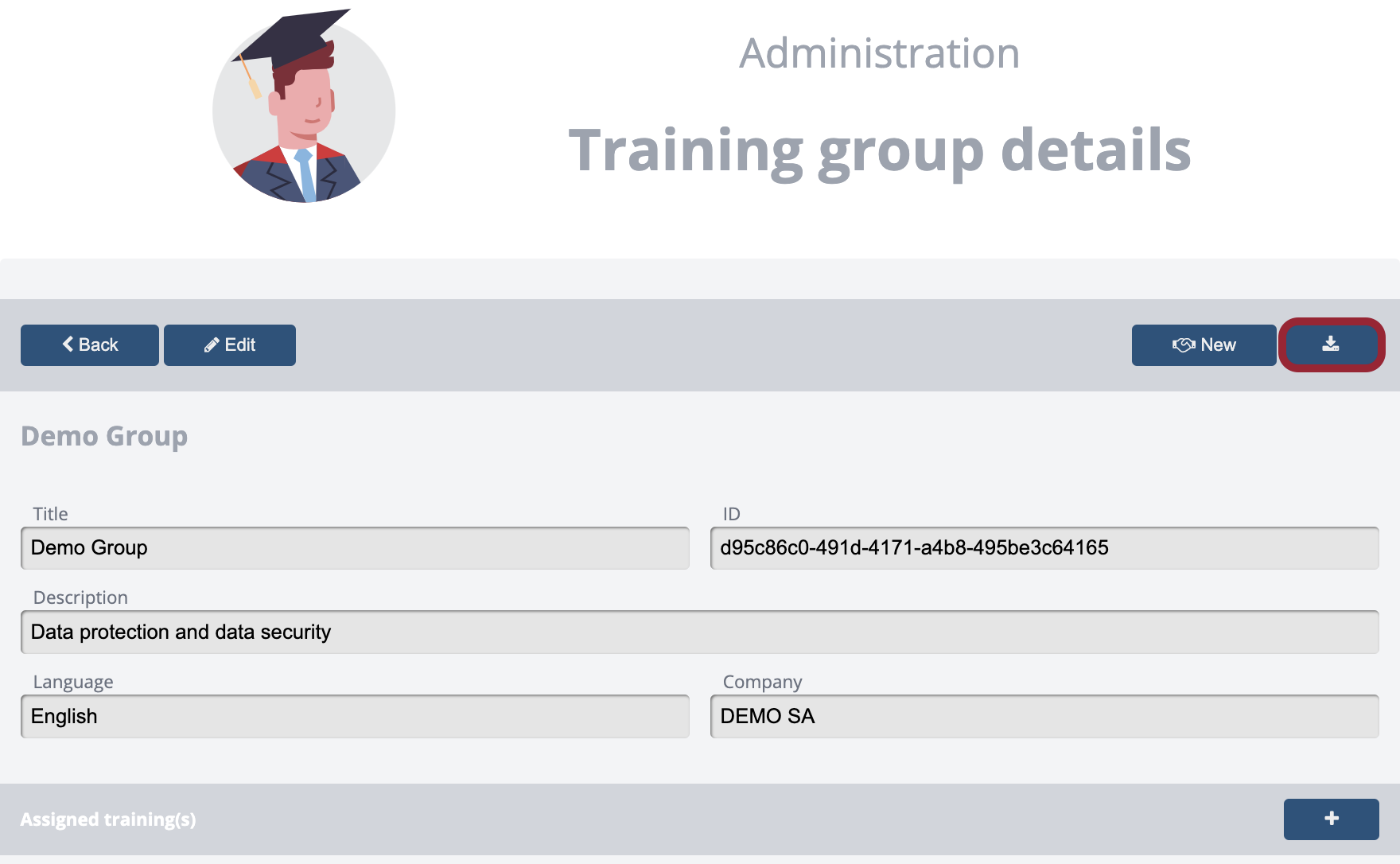
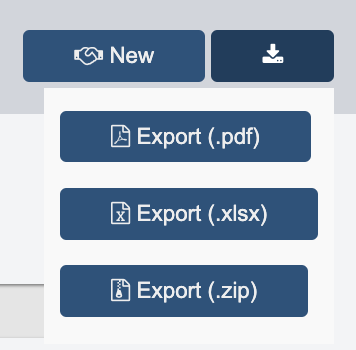
Download the Excel file – it contains all training participants in this group.
2. Prepare CSV sample file
Download the official CSV sample file here. Open the file in Microsoft Excel, LibreOffice Calc or a similar spreadsheet programme. Transfer the following information from the exported Excel file:
- First name
- Surname
Then save the file again in CSV format (UTF-8). !!! info ‘Note’ The file must be saved in CSV format for the import to work correctly.
3. CSV import into the target group
Go back to the participant overview and click on the CSV import button in the top right-hand corner.

Now select the existing target group to which the participants are to be transferred.
Then upload the prepared CSV file.

!!! info ‘Note’
With this method, all recognised persons are added as existing users of the new group – no new accounts are created.
For more information on CSV import, see the section CSV import.
4. Archiving the original group
Once the participants have been successfully transferred, archive the original group: 1. Open the group overview 2. Select the original group 3. Set the group status to Archived This will help you avoid duplicate group structures and keep track of everything.
Video tutorial (coming soon)
An explanatory video about this process is currently being created and will be available soon.